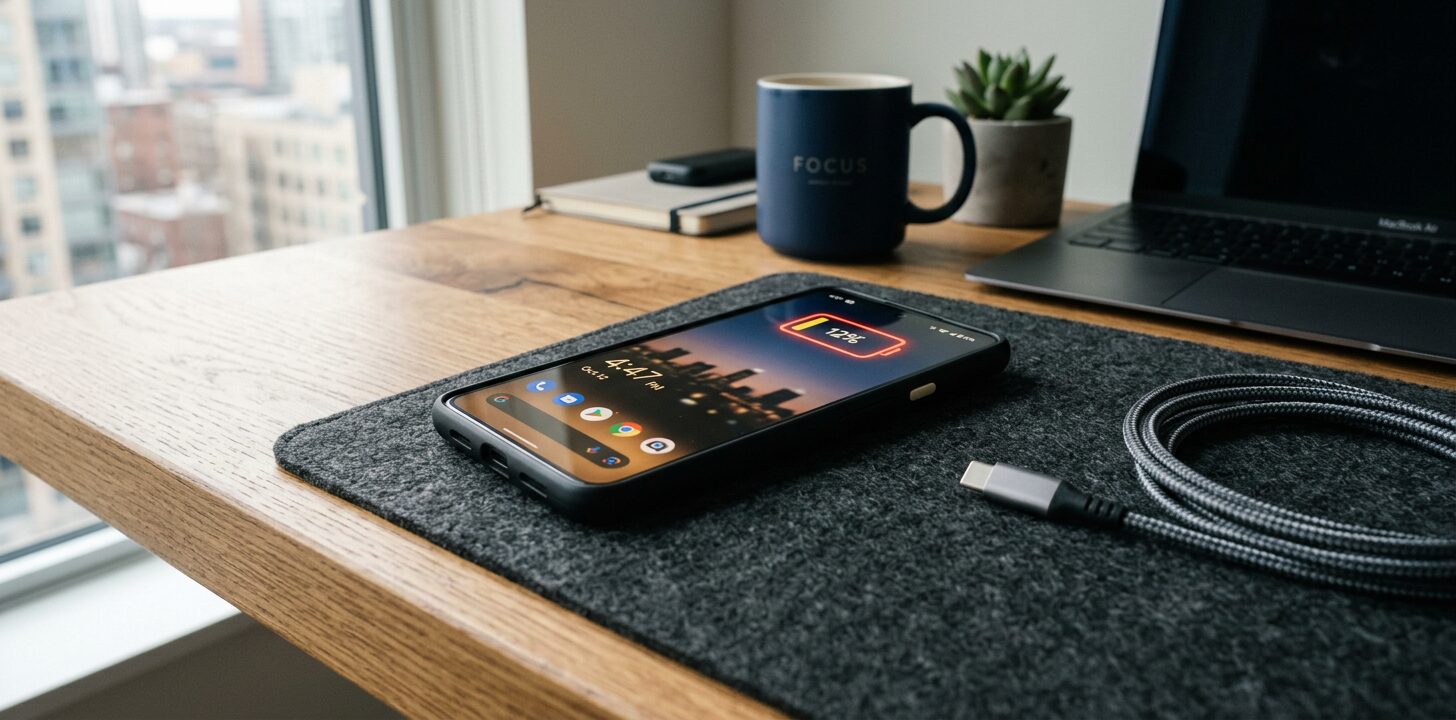
Smartphone batteries rarely die all at once. More often, they fade from “all day” to “barely mid-afternoon,” and you only notice after your habits have already changed around the charger. The good news is that you usually do not need a new phone to fix the problem, you just need a smarter setup.
If you want to improve smartphone battery life, the biggest wins usually come from a few boring but powerful habits, like reducing screen brightness, cutting background activity, and using power-saving modes when it makes sense. These changes can add up fast, especially on devices that spend all day syncing, streaming, and tracking your location.
Introduction
Battery anxiety is real. One minute you are checking messages, maps, or a ride-hailing app, and the next you are hunting for an outlet like it is a life-or-death mission.
Here is the thing, most battery drain is predictable. That means you can control a lot of it without sacrificing the features you actually use.
Why Your Battery Drains So Fast
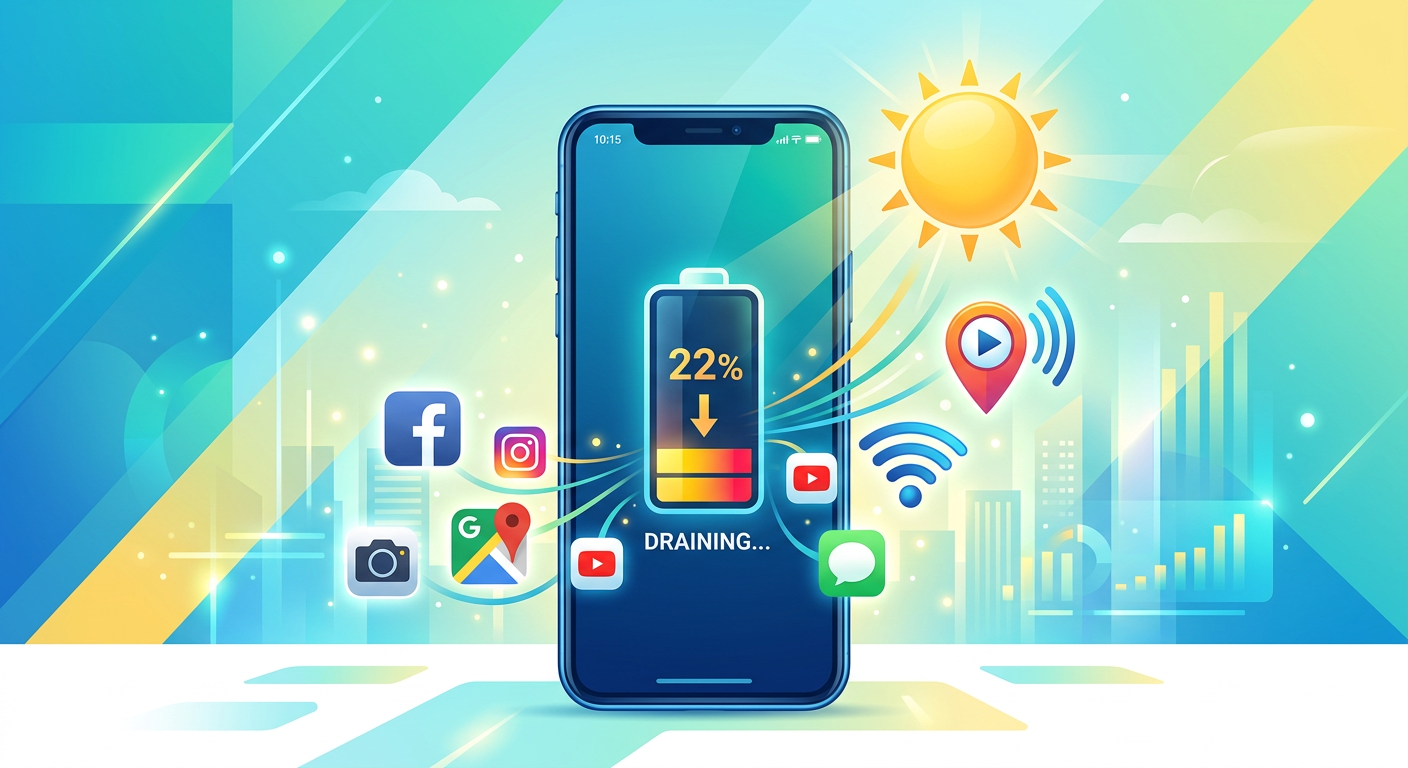
Your phone works hardest when the screen is bright, the signal is weak, the GPS is active, or multiple apps are refreshing in the background. Android and iPhone both include built-in power management features designed to reduce that drain, but they work best when you pair them with good habits. Apple says Low Power Mode reduces background activity, and Android’s power-saving tools are built around limiting unnecessary background work. (support.apple.com)
9 Ways to Improve Smartphone Battery Life
1. Lower Your Screen Brightness
Your display is usually the biggest battery hog. Keeping brightness at maximum all day is one of the fastest ways to burn through a charge, especially on large OLED or high-refresh-rate screens. Use adaptive brightness if your phone supports it, then only increase brightness when you really need it.
2. Shorten Screen Timeout
If your screen stays on for 1 minute after every glance, that adds up quickly. Set auto-lock or screen timeout to a shorter interval so the display shuts off sooner when you are not actively using the phone.
3. Turn On Battery Saver or Low Power Mode
This is the easiest quick fix. On iPhone, Low Power Mode reduces background activity and can automatically limit performance-related power use. On Android, Battery Saver can pause or slow some background tasks, reduce certain visual effects, and delay non-essential activity. (support.apple.com)
4. Stop Apps From Refreshing in the Background
A lot of battery loss happens when apps update content you are not even looking at. Social apps, email, cloud storage, and shopping apps are common culprits. Limit background refresh where possible, and review which apps are allowed to run when you are not using them.
5. Reduce Location Tracking
Maps are useful. Constant location tracking is not. Turn off location access for apps that do not need it, or set permissions to “while using the app” instead of “always.” Android guidance also highlights location services and background work as meaningful battery drains. (developer.android.com)
6. Use Dark Mode, Especially on OLED Screens
Dark mode will not save the same amount of power on every phone, but on OLED displays it can help because darker pixels use less energy. If your device supports it, switch system-wide and in your most-used apps.
7. Watch Your Signal Strength
Weak mobile network signal makes your phone work harder to stay connected. If you are in a low-coverage area, your battery can drop faster than usual. When possible, use Wi-Fi instead of mobile data, and turn on airplane mode in places where you have no signal and do not need connectivity.
8. Disable Features You Are Not Using
Bluetooth, hotspot, always-on display, and 5G can all contribute to drain depending on your device and usage. You do not need to turn everything off forever, but if a feature is running in the background for no reason, it is costing you battery.
9. Check Battery Health, Not Just Battery Percentage
If your phone is old, the problem may be battery wear, not settings. Apple notes that lithium-ion batteries age over time, which reduces how much charge they can hold and can affect performance. If your battery health is poor, no settings tweak will fully restore the original runtime. (support.apple.com)
Charging Habits That Help Long-Term Battery Life
How you charge matters almost as much as how you use the phone. Apple recommends optimized charging features and charge limits on supported iPhones to reduce wear over time. Partial charging throughout the day is generally fine, and keeping the battery between very low and very high levels all the time is not ideal. (support.apple.com)
For most users, the safest routine is simple:
- Avoid letting the battery hit 0 percent regularly
- Do not leave your phone baking in hot places
- Use certified chargers and cables
- Charge when it is convenient, not only when it is nearly empty
Best Quick Wins If You Need More Battery Today
If you only have five minutes, do these first:
- Turn on Low Power Mode or Battery Saver
- Lower brightness
- Turn off location for non-essential apps
- Switch to Wi-Fi when available
- Close battery-heavy apps like video, navigation, and games
That combination often makes a bigger difference than obsessing over tiny tweaks.
Common Mistakes That Drain Battery Fast
Leaving the Screen Bright All Day
This is the simplest mistake and one of the most expensive in battery terms.
Keeping Too Many Permissions Enabled
Apps do not need your location, microphone, or background refresh just because they asked for it.
Ignoring Battery Health Warnings
If your phone is warning you about battery service, take it seriously. At that point, replacement may be the real solution.
When It Is Time to Replace the Battery
If your phone shuts down unexpectedly, loses charge very quickly, or struggles to last half a day even after you adjust settings, the battery may be worn out. Apple explicitly advises checking battery health and considering service if the device indicates it. On Android phones, battery replacement can also be the most cost-effective fix when the device is otherwise still performing well. (support.apple.com)
Conclusion
Improving smartphone battery life is usually about stacking small wins, not finding one magical setting. Lowering brightness, limiting background activity, using power-saving modes, and charging more intelligently can stretch your day in a real, noticeable way.
If your battery is still struggling after that, do not blame yourself. Sometimes the battery has simply aged out, and replacement is the smartest move.
Keep Learning With TechCity
For more practical tech guides, product tips, and device advice that actually helps, keep exploring TechCity. We break down the stuff that matters, so you can get more from the devices you already own and make better buying decisions next time.
Frequently Asked Questions
Does closing apps help battery life?
Usually, not much. In many cases, aggressively closing and reopening apps can use more power than leaving them alone.
Is dark mode really better for battery life?
Yes, especially on phones with OLED screens. The savings depend on the device and how bright your screen is.
Should I charge my phone overnight?
Most modern phones manage charging well, and features like optimized charging help reduce wear. Still, heat is the bigger concern, so avoid hot environments.
Does 5G drain battery faster than 4G?
It can, depending on your coverage, phone model, and how the device switches between networks.
What is the biggest battery drain on a smartphone?
Usually the screen, then network activity, location services, and background app refresh.
How often should I check battery health?
If your phone is a year or two old, checking every few months is enough. If you notice a sudden drop in runtime, check sooner.
Can software updates improve battery life?
Sometimes yes, sometimes no. Updates can improve power management, but they can also temporarily affect battery behavior right after installation.